XLeap features: Workspaces and tools

Purpose-built workspaces and tools for real-time workshops that deliver better solutions and robust decisions—anonymous, simultaneous, AI-enabled, fast.

  • Surface critical input immediately
  • Focus on what matters
  • Make alignment and dissent visible
Book a demo now

Process designer

In Process designer, you map your workshop flow to a sequence of purpose-built workspaces and configure each step for the task at hand—prompts, instructions, criteria, participation settings, and outputs.

Example: Start with a Presentation to set context. Then collect facts, viewpoints, or ideas in Brainstorm. Prioritize with Rating and review outcomes in a Results table or charts. Deepen the top themes in Discussion; when needed, multi-criteria decision analysis makes trade-offs and synergies transparent.

EXPLORE PROCESS DESIGNER

Brainstorm workspace

Use Brainstorm to build comprehensive lists of ideas, opinions, facts, or questions—fast. Participants contribute in parallel, see new inputs instantly, and can build on each other’s thinking. Anonymity can be enabled to reduce self-censorship and surface critical knowledge early.

Optionally, involve one or more AIs to add perspectives and expertise not covered by the group. Then refine the output: comment on items, sort them into theme folders, and mark up ideas with sticky dots. Brainstorm is self-documenting, with an instant Word report and export to Excel.

EXPLORE BRAINSTORM

Rating sheet

Use Rating to establish priorities, assess options, and make alignment or dissent visible—by rating items on one or several criteria. Rate any list of items (for example from a prior Brainstorm) using methods such as numeric scales, rank order, budget allocation, estimates, or multiple selection.

Rating starts in the Rating sheet, where participants submit their ratings in parallel and results are available immediately for analysis and visualization.

EXPLORE RATING

Rating results tables

As soon as you close the Rating sheet, the Results table is available immediately—for answering the questions that matter:

  1. What received the highest ratings?
  2. What is irrelevant for the current objective?
  3. Where is the group aligned—and where not?

Analyze single- or multi-criteria ratings in real time, including calculated indicator values, sensitivity analysis, and comparisons across participant groups (for example, between departments).

EXPLORE RESULTS TABLES

Rating results charts

Use Results charts to review ratings visually and quickly spot patterns. Charts visualize selected columns from the Results table—so you can focus on the criteria, indicators, or comparisons that matter in the moment.

Chart types follow the rating method (for example, budget allocations are shown as shares), and you can switch views to match your purpose: highlight the top-rated items, compare participant groups (by demographics) against the overall result or against each other, and use heatmaps to interpret multi-criteria assessments at a glance.

EXPLORE RESULTS CHARTS

Discussion workspace

Use Discussion to deepen the most relevant or controversial topics in your workshop—by exchanging arguments, questions, and supporting information in writing.

Discuss multiple topics in parallel so participants focus where they can add the most value while staying in the loop on everything. Enable anonymity when needed to surface critical input and reduce bias. Structure the enquiry with prompts and use sticky dots to highlight or prioritize contributions in context. Discussion content is self-documenting and included in the instant Word report, with export for follow-up work.

EXPLORE DISCUSSION

Presentation workspace

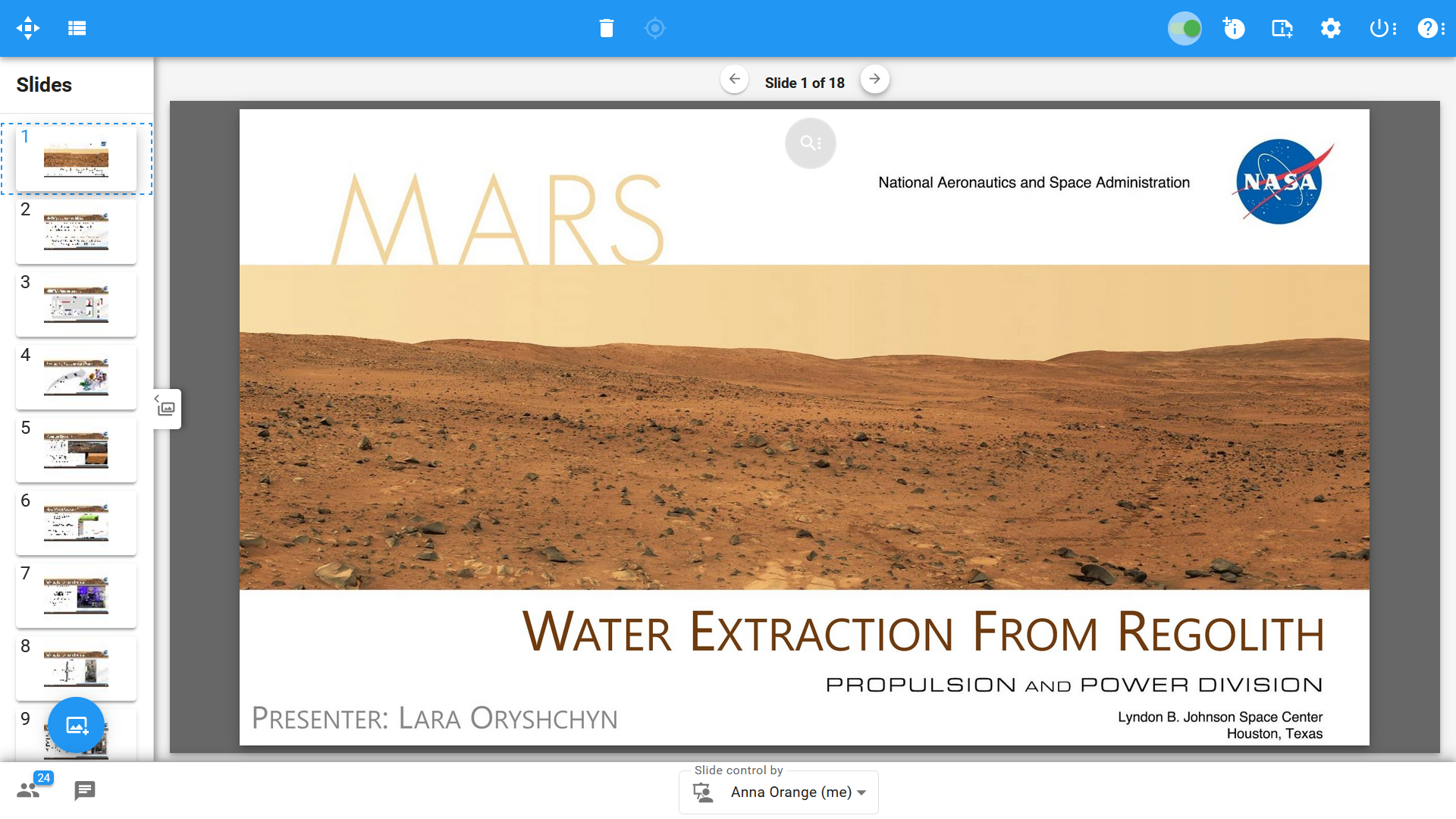
Use Presentation to share information in your workshop and capture meaningful feedback at the same time. Upload your material (PDF, images, or video) and present it directly in XLeap.

Add an optional feedback channel alongside the slide show to collect questions, objections, and supporting information in writing—with the full functionality of the Discussion workspace. Like all XLeap workspaces, Presentation is self-documenting: slides and feedback are included in the Word report and can be exported for follow-up work.

EXPLORE PRESENTATION

Automatic documentation

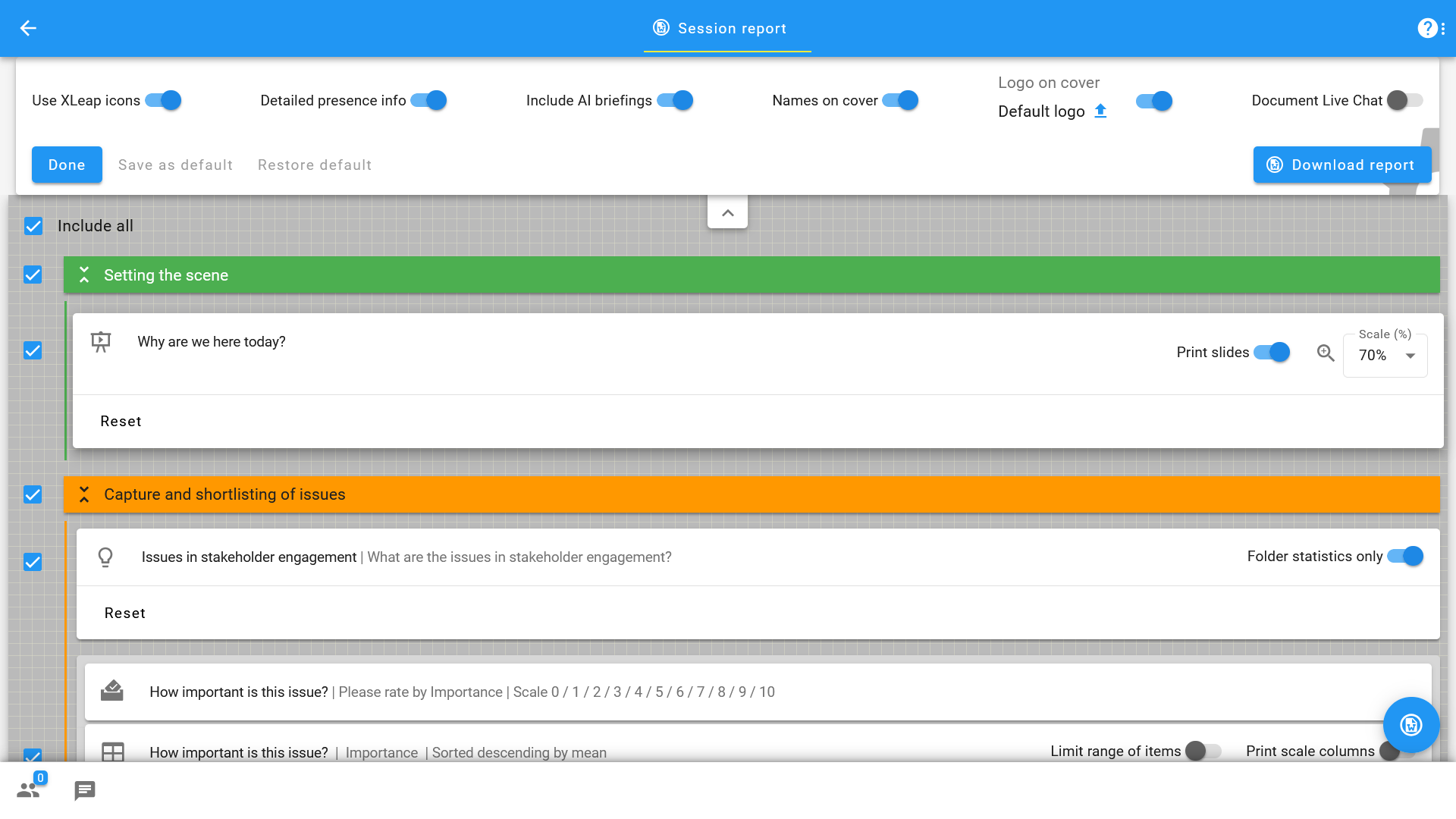
All XLeap workspaces are self-documenting: participant contributions and the host’s written instructions are captured automatically. At any time, generate a Word report (.docx) with one click and tailor it to your audience—hide redundant detail, aggregate content, or limit results to the top or bottom items. For presentations, document either the slides or only the feedback channel, and include additional analyses (for example, participant-group comparisons) even if they were not shown live.

For follow-up work and integrations, export outcomes to Excel or plain text. Brainstorm, Discussion, and Presentation export to .txt or .xlsx, and Rating results tables export to Excel with all data for single- or multi-criteria assessments.

EXPLORE AUTOMATIC DOCUMENTATION

Start with XLeap

Whether you can choose your own tools or want to establish XLeap across your organization, there is a straightforward way to get started.

For independent professionals

If you can choose your own tools, you can start using XLeap right away—with zero admin overhead.

  • Try XLeap free for 14 days
  • Personal onboarding included
  • Personal XLeap subscription: {cur}4,900 / year
  • 3 hours of training at no additional cost
Start your free trial
Subscribe now

For organizations

Talk to us about how you want to use XLeap, your deployment requirements, and rollout.

  • Use cases and workshop settings
  • Deployment options (Cloud, Managed, In-house/SCIF)
  • Information security & compliance
  • Onboarding and training for your team
Book a demo
Contact us

For education and non-profits

Educational institutions and non-profit organizations receive special terms with XLeap.

Get in touch—we’ll find the right model for your use case.  NON-PROFIT INQUIRY